 Qos|c
Qos|cHow to sign in to QOS
The sign-in screen offers two different routes and does not say which one is yours. The steps below show them on real screenshots. No account is needed to read this page.
First, work out which door is yours
There are two tabs at the top of the sign-in card. The wrong tab takes you to a door you cannot open, so knowing which one is yours comes first.
- ŞifreIf QOS had you set a password directly, your route is the Password tab. QOS verifies your identity itself.
- SSO / SAMLIf your organisation uses its own sign-in system, your route is the SSO / SAML tab. Your organisation verifies your identity and QOS never asks you for a password.
If you are not sure, do not guess. Ask your manager or whoever runs QOS at your organisation: this depends on the organisation, not on you.
Signing in with a password
The Password tab has two fields: email and password.
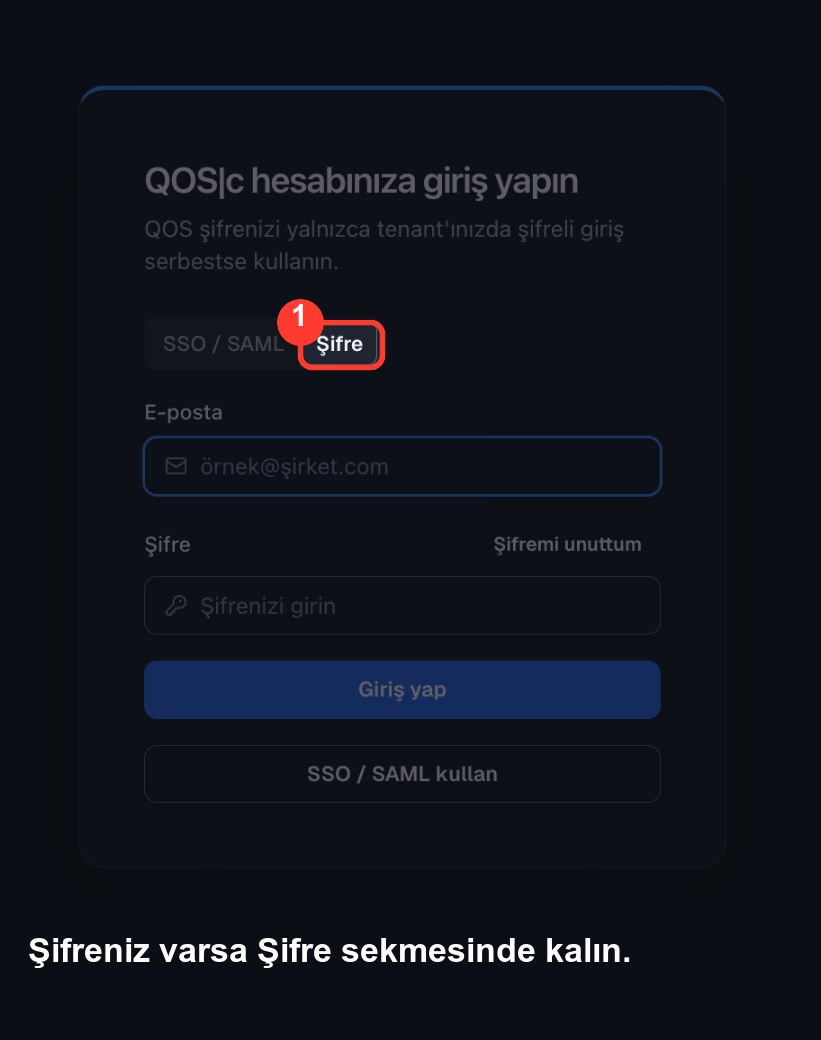 Stay on the Password tab.
If the SSO screen opened by mistake, the “Sign in with password” link at the bottom of the card brings you back.
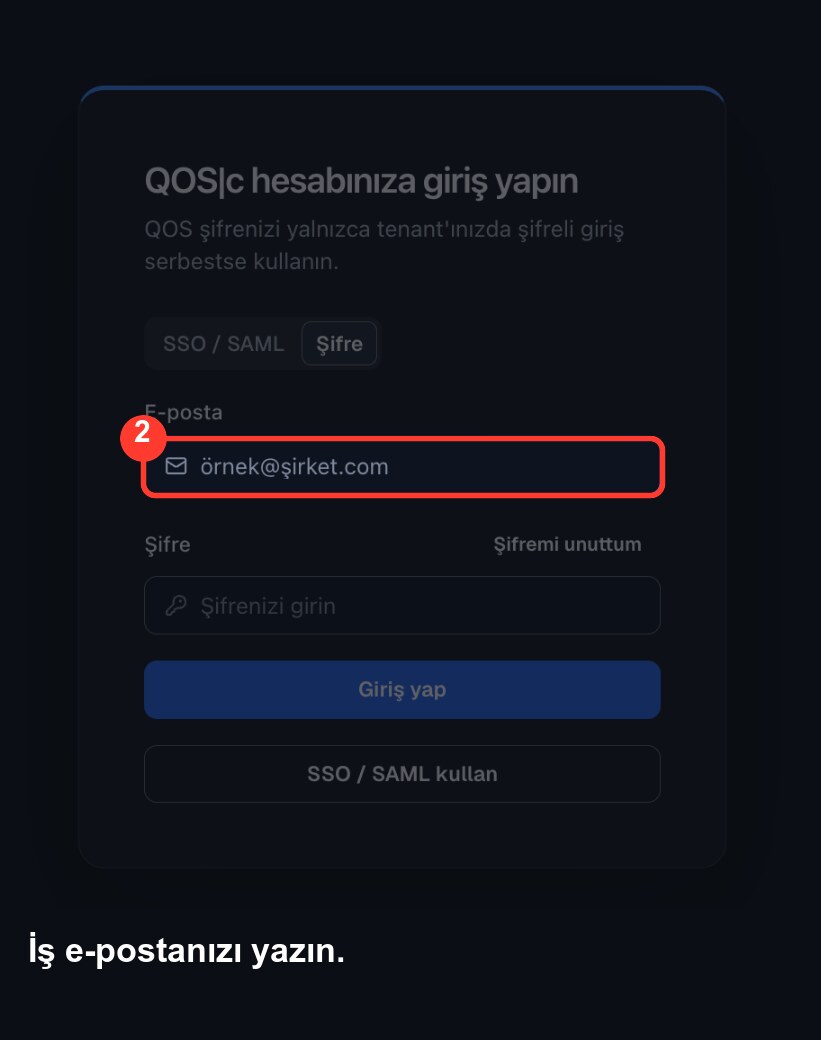 Type your work email.
Sign in with the address your account was created with. A personal address will not work.
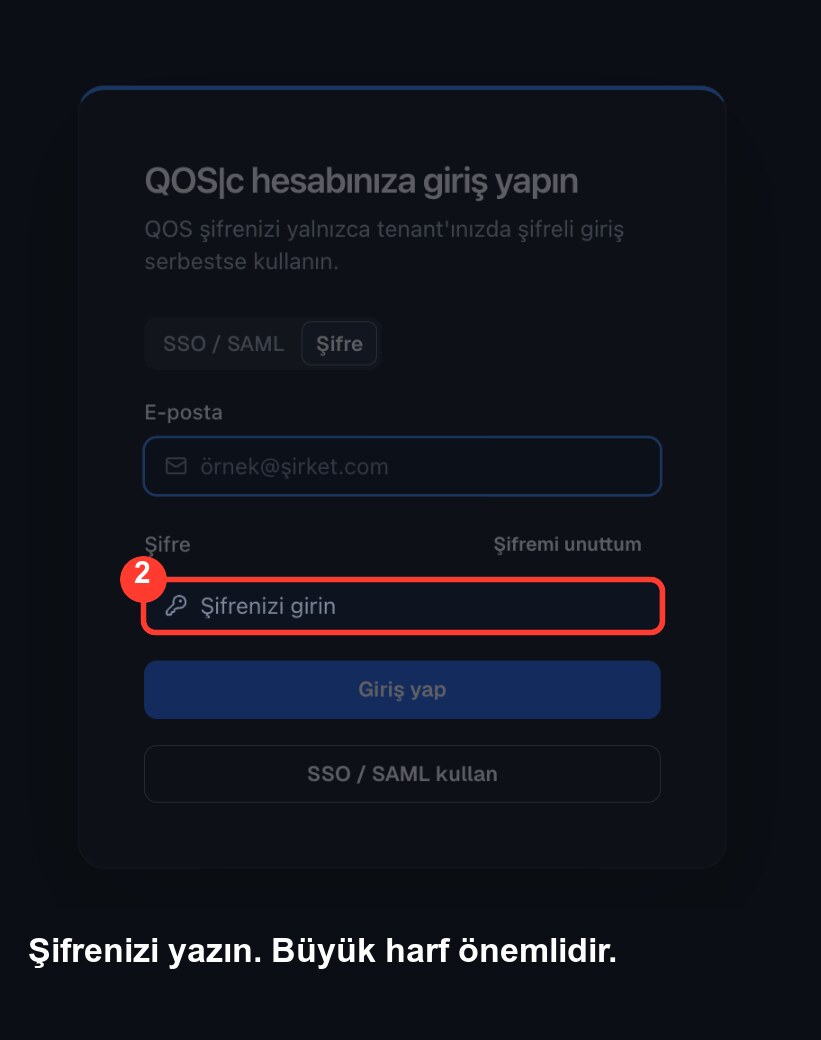 Type your password.
The password field is case-sensitive. If your browser offers a saved password, check that it belongs to the account you mean to use.
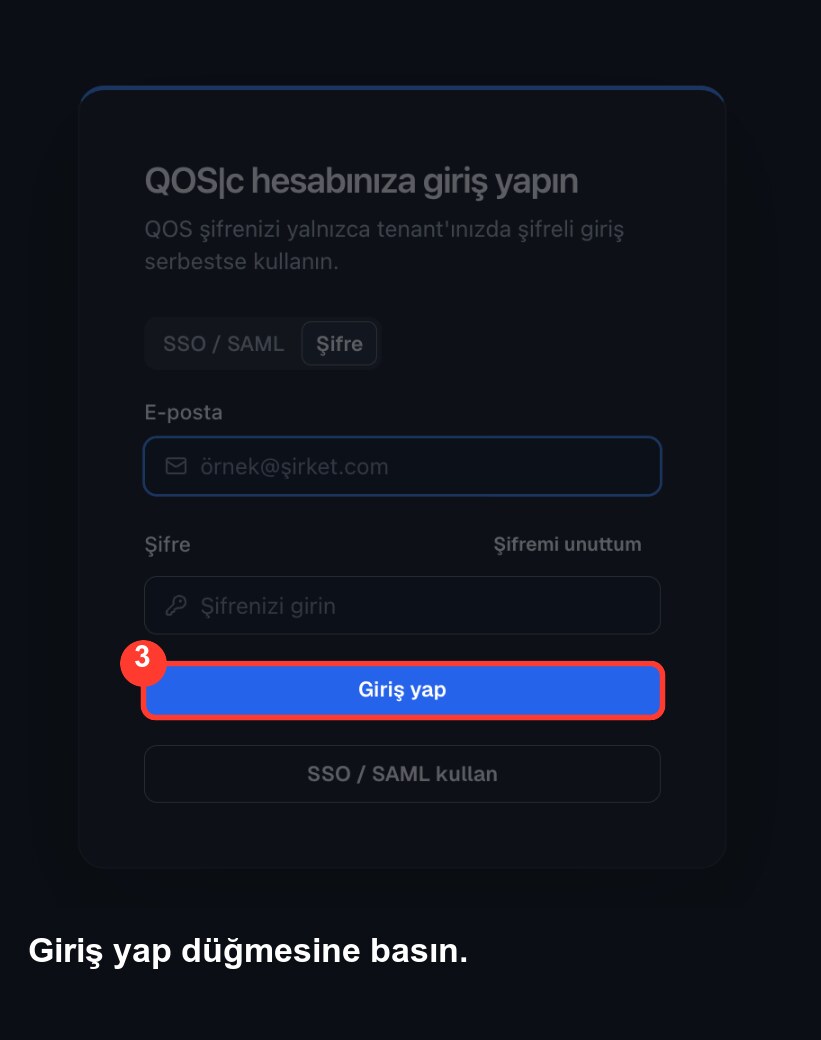 Press Sign in.
If your account has an extra verification step, the next screen asks for it; that step cannot be skipped.
If sign-in is refused, check three things first: letter case, a space caught at the start or end of an address you pasted, and a wrong account filled in by the browser. Repeated failed attempts can lock the account temporarily, so stopping to check on the third attempt is faster than carrying on.
Signing in with your company account
On this route QOS does not verify you itself; it asks your organisation.
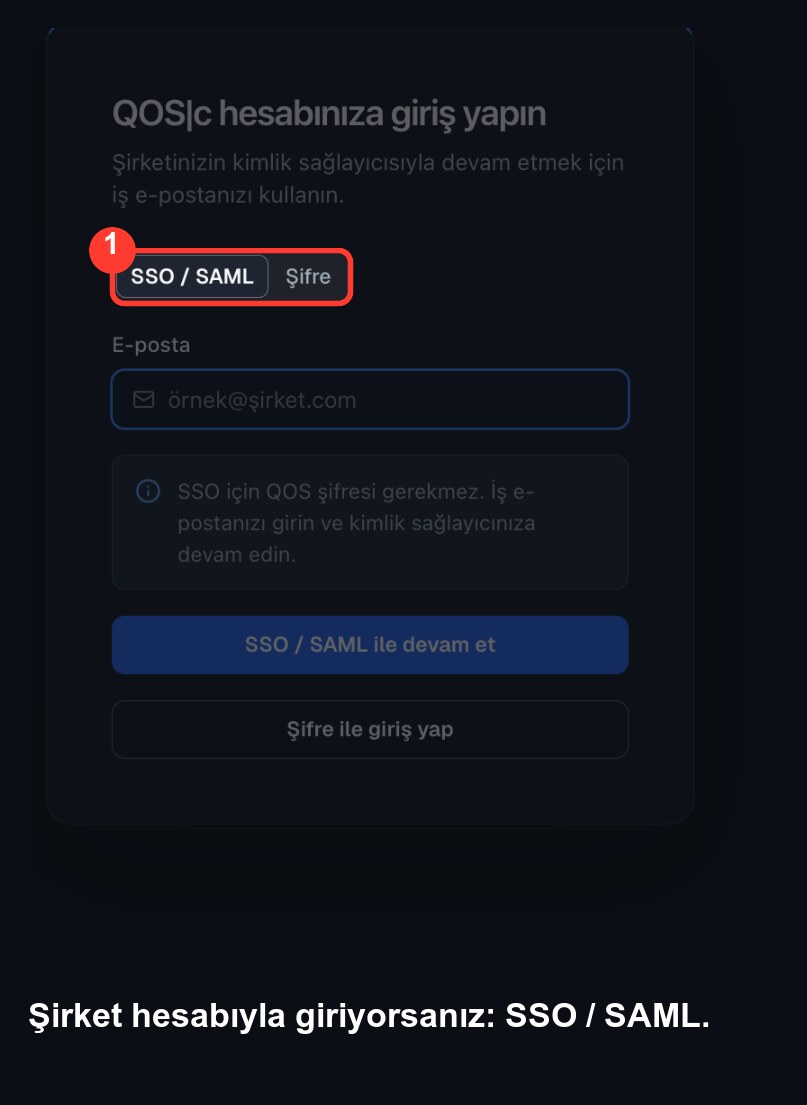 Choose the SSO / SAML tab.
The “Use SSO / SAML” button on the Password tab leads to the same place. The screen simplifies and asks only for your email.
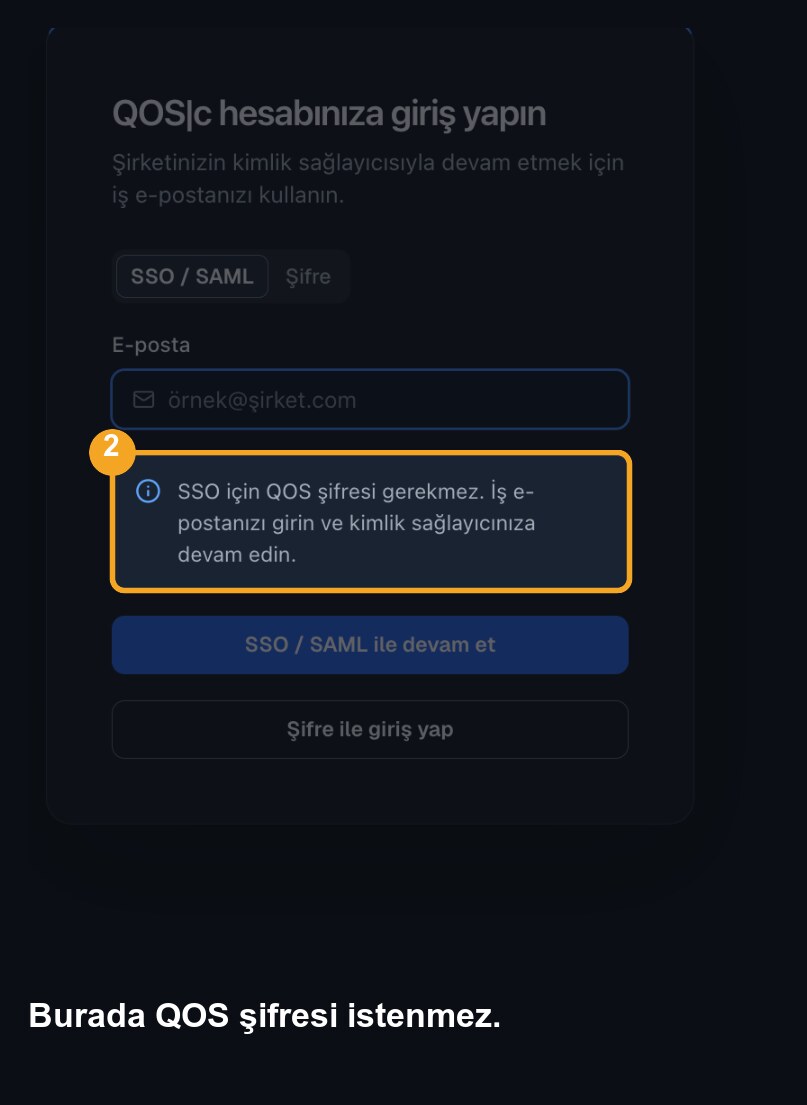 No QOS password is asked for here.
A missing password field is not a fault. On this route you do not have a separate QOS password.
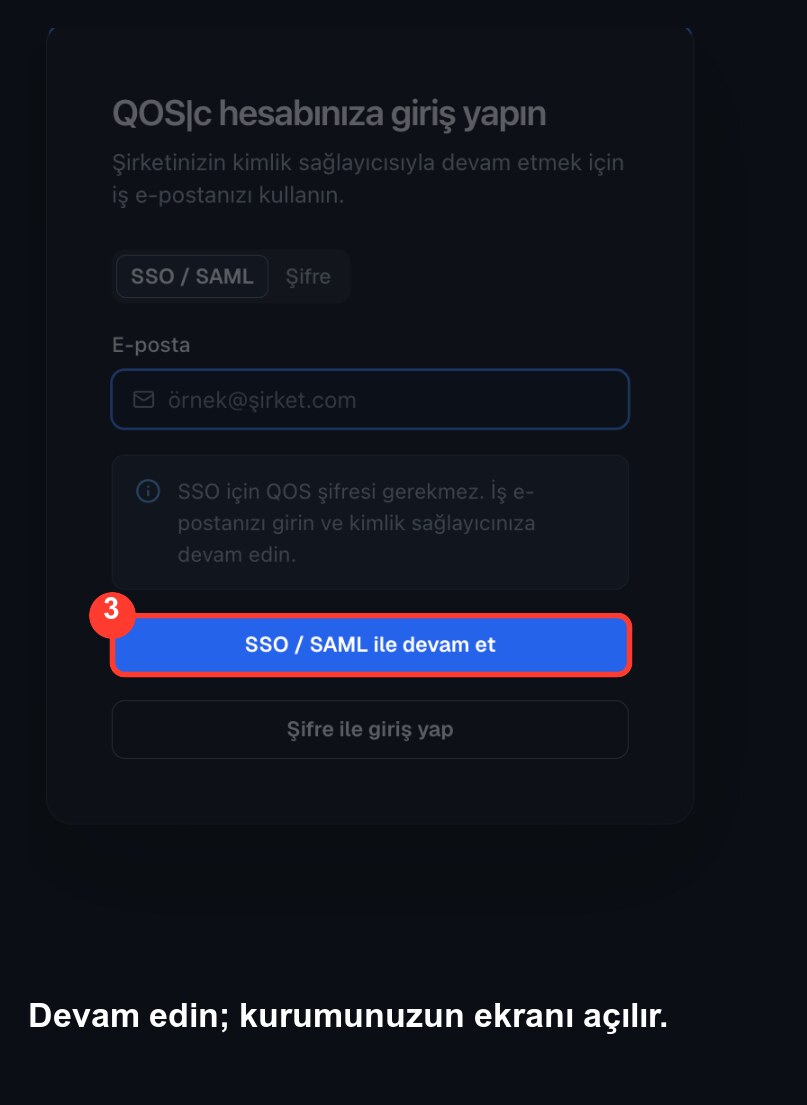 Continue; your organisation’s screen opens.
A sign-in screen that does not look like QOS appears. That is expected and you have not gone to the wrong place: it is your organisation’s own sign-in page, and the address bar shows your organisation’s address.
If the error appears on your organisation’s screen, the problem is usually not on the QOS side. Your account may be disabled, your access may not be granted, or your organisation’s system may be temporarily unavailable. Contact your organisation’s IT team.
If you have forgotten your password
You do not need to create a new account.
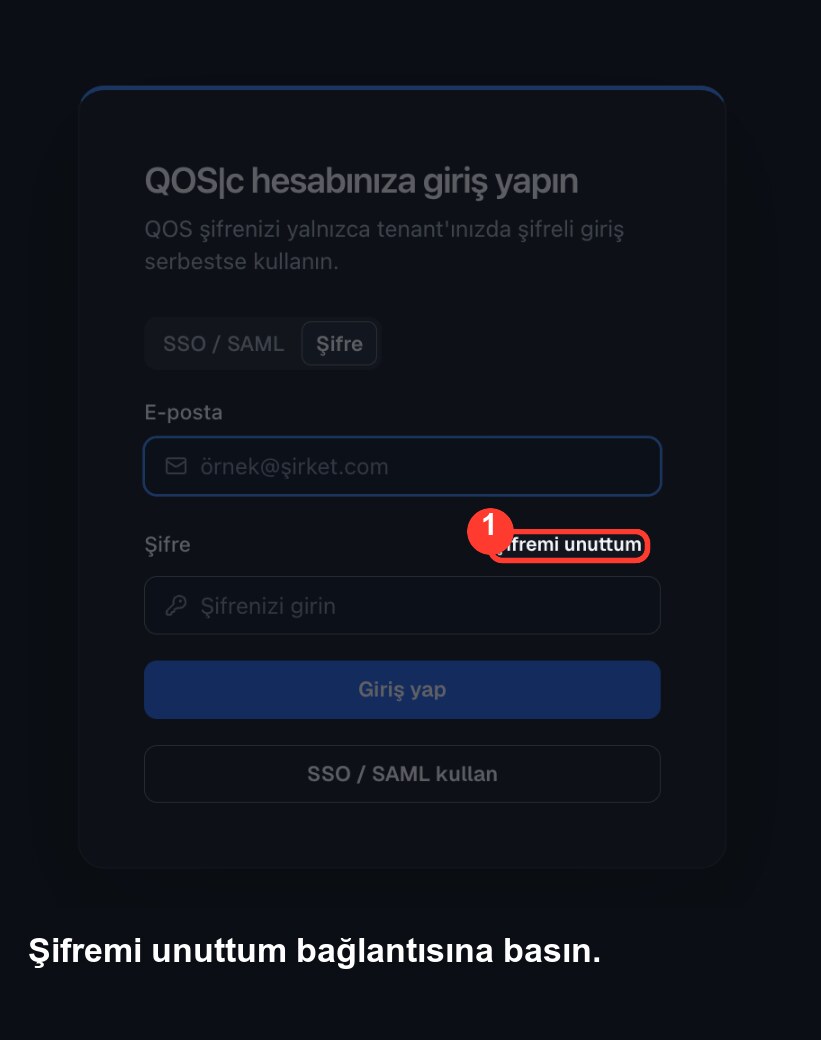 Press the Forgot password link.
The link sits at the top right of the password field and takes you to a separate page.
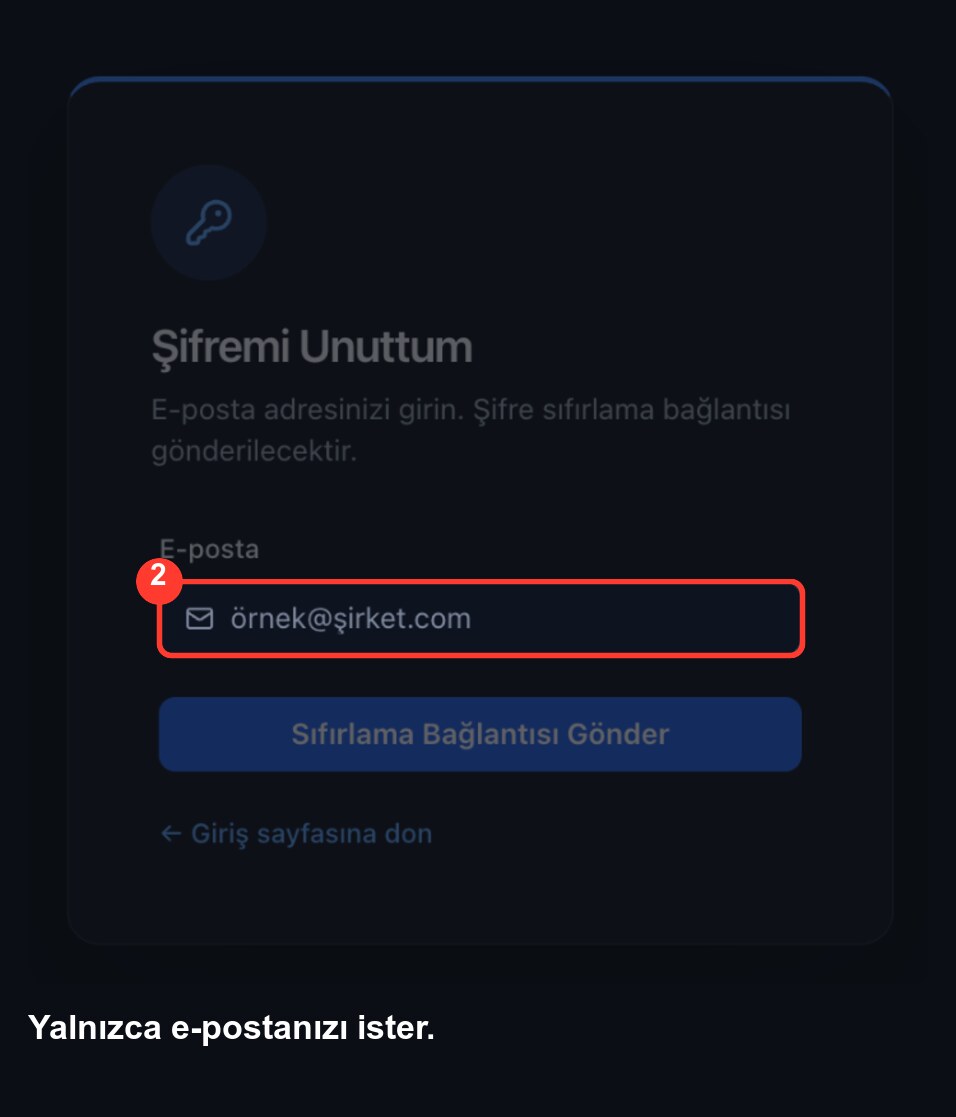 It asks only for your email.
Your old password is not asked for. The page also does not tell you whether the address is registered: it answers the same either way.
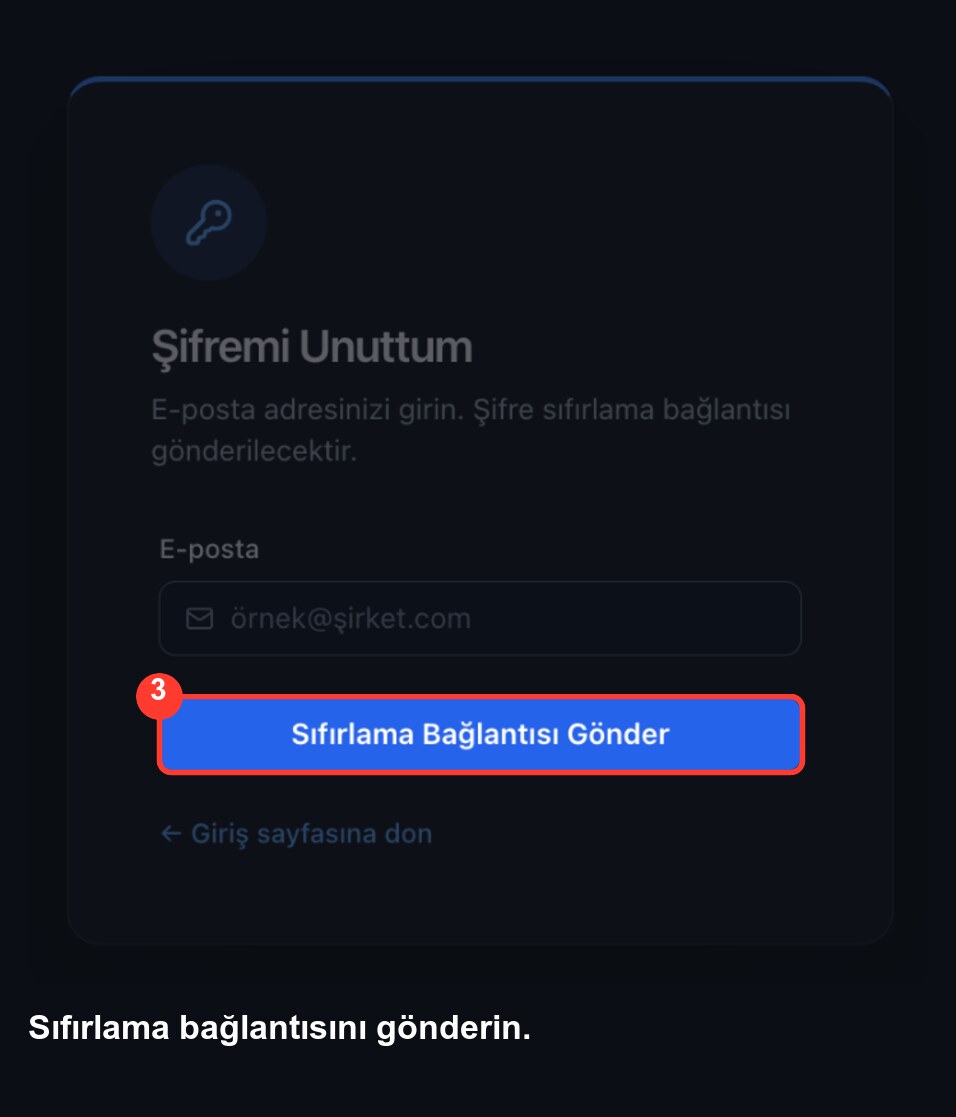 Send the reset link.
A link arrives at your address. It expires and works only once; if it no longer works, simply request another.
If you sign in with your company account this flow does not apply to you, because you have no password on the QOS side. Reset it through your organisation’s own system.
If you still cannot get in
Always sign in at the QOS address your organisation gave you, and never type your credentials on another address. If the steps did not help, contact whoever runs QOS at your organisation, or their IT team.
The same subject as a course
QOS Akademi’s “QOS’a Giriş” course covers these same steps in four modules, with checkpoints and a certificate. The course is free; joining requires signing up.
Visit QOS Akademi